Country Profiles
Country profiles filter your Procivis One Desk application, allowing you to work within specific regulatory or operational frameworks with confidence. Each profile represents a specific wallet implementation, such as a national digital identity wallet or a standard-compliant reference implementation, ensuring that everything you create and see aligns with that implementation's technical requirements.
When you activate a profile, it eliminates guesswork around technical compliance by automatically filtering available options to match your target wallet's supported features. You can switch between available profiles at any time, allowing you to move seamlessly from one regulatory context to another as your needs change.
How profiles work
Select a profile
Choose your regulatory context from the profile dropdown in the application header. The selected profile immediately filters your view and controls what you can create.
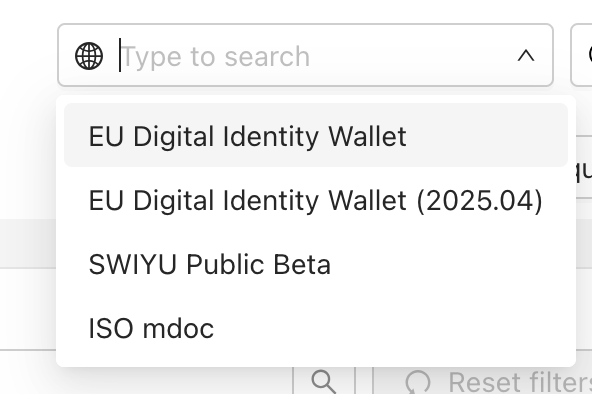
When no profile is selected, you see all assets and options regardless of regulatory compatibility.
View assets compatible with your profile
With a profile active, the Desk shows only assets that work within your selected regulatory framework. The Profile column indicates which assets are associated with or compatible with your active profile.
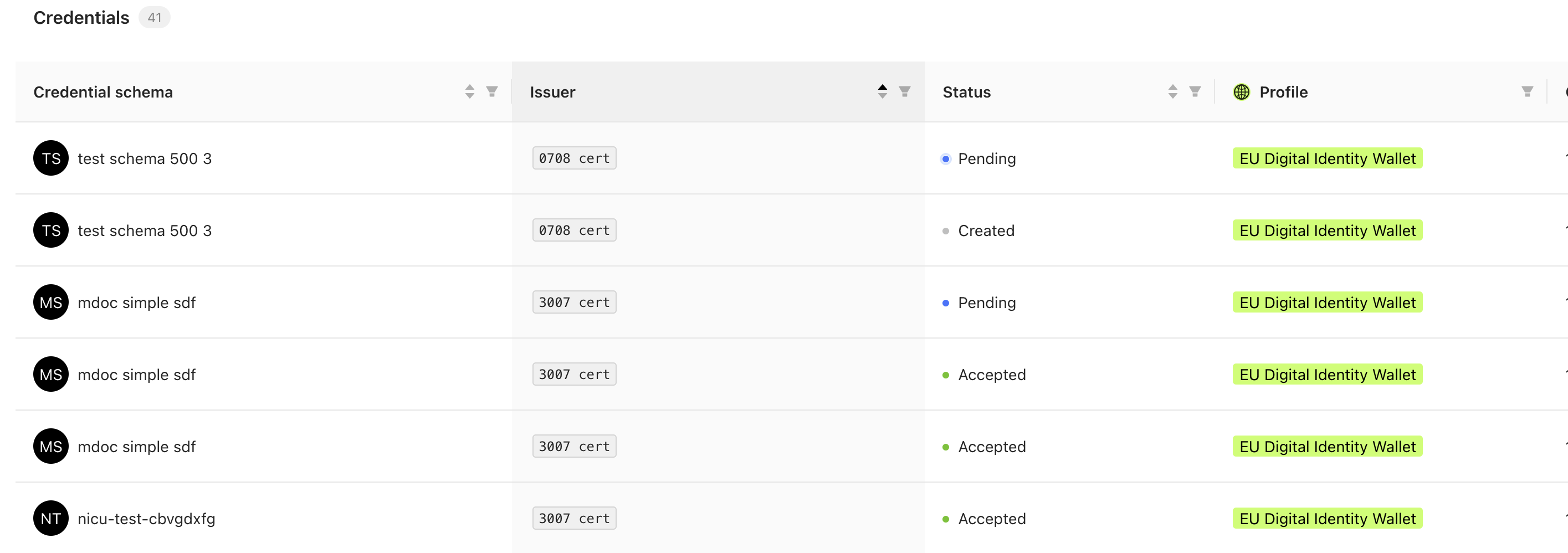
Assets are filtered in two ways:
Filtered by compatibility — Keys, identifiers, and schemas appear if their configuration is compatible with the active profile, regardless of when or how they were created.
Filtered by association — Credentials and proof requests appear only if they were created while that specific profile was active. These assets are permanently linked to the profile used during creation.
Create assets within your profile
When creating new assets, the profile filters available options to show only those that comply with your regulatory framework. For example, key algorithms, credential formats, and protocol versions are limited to profile-compatible choices.

The profile you have active during creation becomes permanently associated with credentials and proof requests, while other assets like keys and schemas remain available across compatible profiles.
Available profiles
The list below reflects the profiles available in the Trial version of the Desk UI.
Profiles are custom-built to reflect specific wallet implementations and their technical requirements. The profiles available in your deployment may differ from those shown here as new implementations become available for testing.
EU Digital Identity Wallet
This profile reflects the eIDAS 2.0 regulatory framework architecture and is tested against the EU Digital Identity Wallet reference implementations for iOS and Android.
Compatible versions (as of January 2026):
- EUDI iOS Wallet: v2025.04.25-Demo
- EUDI Android Wallet: v2025.04.25-Demo
SWIYU Public Beta
This profile reflects the Swiss e-ID "swiyu" Public Beta architecture and is tested against the swiyu wallet for Android and iOS.
Compatible versions (as of January 2026):
- swiyu Android Wallet v1.3.0, build 615
- swiyu iOS Wallet v1.6.2, build 837
ISO mdoc
The ISO mdoc profile reflects the ISO/IEC 18013-5 standard for mobile driving licenses (mDLs) and other credentials using the mdoc credential format.
Country-specific profiles
eIDAS 2.0 allows each Member State to implement subsets of the total supported architecture. Country-specific profiles apply the technical requirements of a particular country's implementation, allowing you to switch seamlessly between testing against wallets from different countries.
As countries deploy sandbox environments for their digital identity wallet implementations, corresponding profiles are added to support testing and integration.
Your implementation
Since profiles can be custom-built to suit particular contexts, it is important to understand what your Desk application supports.
See if profiles are enabled
If you are using the Desk application and profiles are enabled, you will see a drop-down menu in the upper-right of your screen.
Using the API?
Retrieve the configuration and check the
frontend object:
{
  "frontend": {
    "profilesEnabled": true
  }
}
See available profiles
If using the Desk application and profiles are enabled, the profiles drop-down will show you all available profiles.
Using the API?
Retrieve the available profiles with GET on /api/config/profile/v1
Disable profiles
To disable profiles in your Desk application, adjust the frontend
configuration in your application.yml:
frontend:
  profilesEnabled: false